
A phone hotspot can be extremely useful when your home Wi-Fi is unavailable, you are traveling, or you simply need a temporary internet connection for your laptop. That convenience can quickly disappear, however, when the hotspot shows up on your laptop but refuses to connect.
If you are wondering why won’t my laptop connect to my hotspot, the best approach is to identify whether the problem is coming from the phone, the laptop, or the mobile network before changing complicated settings.
1. Why Won’t My Laptop Connect to My Hotspot in the First Place?
The most common causes include an incorrect password, disabled hotspot, incompatible Wi-Fi band, weak signal, outdated network driver, or a problem with the phone’s cellular connection.
Laptop-side problems such as an outdated Wi-Fi driver, corrupted network configuration, VPN interference, or a disabled network adapter can also prevent the connection. On the phone side, mobile data availability and carrier tethering restrictions may matter as well.
Here is a quick way to narrow down the problem:
| What You See | Possible Cause | What to Check First |
| Hotspot does not appear on laptop | Hotspot disabled, weak signal, or frequency incompatibility | Turn hotspot off/on and move devices closer |
| Hotspot appears but will not connect | Wrong password or saved network settings | Re-enter the password and forget the network |
| Laptop connects but says “No Internet” | Phone has no cellular data or carrier issue | Test internet directly on the phone |
| Connection repeatedly drops | Weak signal, interference, or power/network settings | Reduce distance and restart both devices |
| Other devices connect but laptop cannot | Laptop adapter, driver, or compatibility issue | Check the laptop’s Wi-Fi adapter |
| Laptop connects only after changing hotspot settings | 2.4 GHz/5 GHz compatibility issue | Enable compatibility mode if available |
This same troubleshooting process applies whether you are asking why won’t my hotspot connect to my laptop on an Android phone or having trouble with an iPhone Personal Hotspot.
>>> Read more: How to Connect Hotspot From iPhone to Laptop: 3 Easy Methods
2. How to Fix a Laptop That Won’t Connect to a Hotspot: 8 Quick Ways
Once you identify why won’t my laptop connect to my hotspot, work through these quick fixes to restore the connection.
Turn the Hotspot Off and Back On
Turn off the hotspot for several seconds, then enable it again. Toggle Wi-Fi off and on on your laptop as well. This refreshes the connection and may clear temporary network errors.
On an iPhone, make sure Settings > Personal Hotspot > Allow Others to Join is enabled.
Check Your Hotspot Name and Password
An incorrect or outdated saved password may explain why won’t my laptop connect to my phone hotspot. Confirm the hotspot name and password on your phone.
If necessary, forget the saved network on your laptop and reconnect using the current password.
Move Your Laptop Closer to Your Phone
Distance and physical obstacles can weaken the Wi-Fi signal between your phone and laptop. If you are wondering why won’t my laptop connect to my hotspot, move the phone within a few feet of the laptop and try connecting again.
Keep the devices away from thick walls, metal objects, and other electronics that may cause wireless interference. If the connection works at close range but fails farther away, signal strength or interference is likely contributing to the problem.
Make Sure Your Phone Has Mobile Data Access
Turn off Wi-Fi on your phone and load a webpage using cellular data. If the phone itself has no internet access, the hotspot may not provide a working connection to your laptop.
Change Hotspot Compatibility Settings
If you are asking why won’t my laptop connect to my iPhone hotspot, compatibility may be the issue. On supported iPhones, try Settings > Personal Hotspot > Maximize Compatibility.
Apple recommends enabling Maximize Compatibility when compatible iPhone and iPad models have difficulty connecting to Personal Hotspot. Apple also notes that enabling the option may reduce hotspot performance.
On Android, switch the hotspot band from 5 GHz to 2.4 GHz if an older laptop cannot connect.
Restart or Update Your Laptop’s Network Adapter
If other devices connect normally, focus on the laptop. Restart it and check that its Wi-Fi adapter is enabled. On Windows, you can also check for available network-driver updates.
Disable VPN or Network Security Software Temporarily
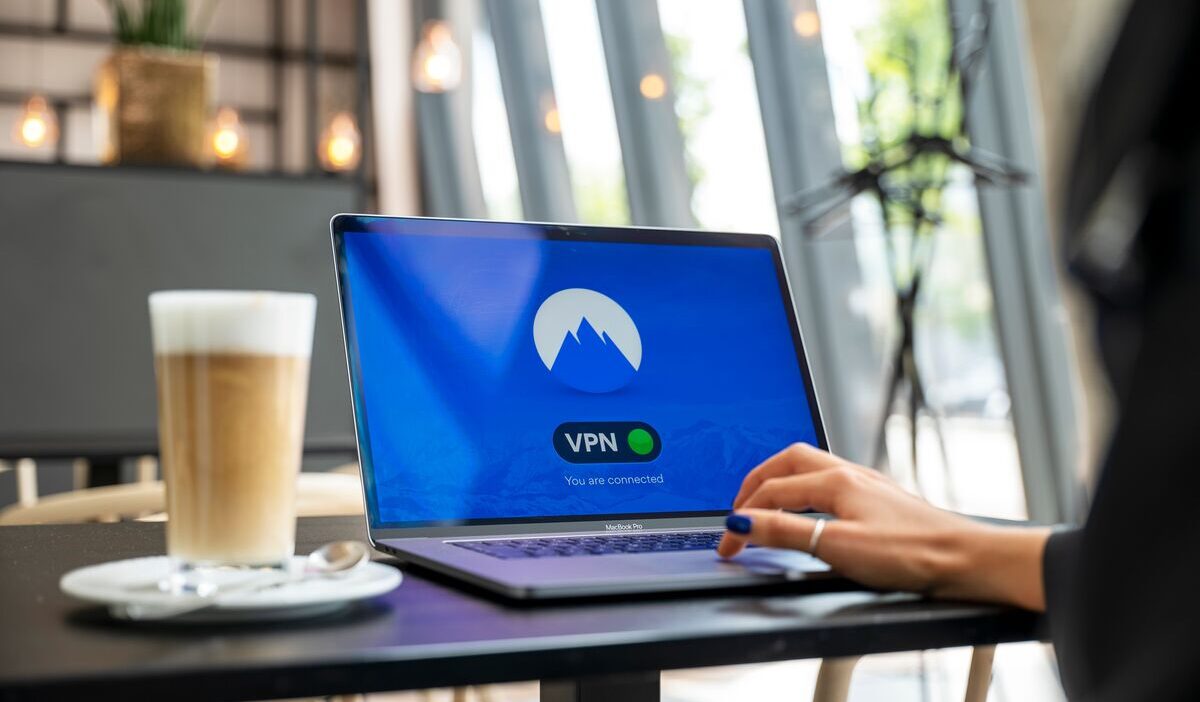
VPNs, proxies, firewalls, or security software can sometimes interfere with internet access. Temporarily disable them one at a time and test the hotspot again.
Reset Network Settings as a Last Resort
Use a network reset only after simpler fixes fail. On Windows 11, go to Settings > Network & internet > Advanced network settings > Network reset.
Resetting network settings may remove saved connections or require VPN and other network settings to be configured again.
3. What If My Laptop Connects to the Hotspot but Has No Internet?
Sometimes your laptop connects successfully to the phone’s Wi-Fi network but displays No Internet, Connected without Internet, or a similar warning.
At this point, the question is no longer simply why won’t my laptop connect to my hotspot, because the Wi-Fi connection has already been established; the issue is now internet access through the phone
First, test the internet directly on the phone while using cellular data instead of Wi-Fi. If the phone cannot load websites, troubleshoot the cellular connection before changing anything on the laptop.
Other possible causes include a VPN or DNS issue, a depleted mobile data allowance, hotspot-specific data limits, or restrictions in your wireless plan.

4. When Should You Contact Your Carrier or Device Support?
Contact your wireless carrier if mobile data works on your phone but the hotspot is unavailable or cannot provide internet access.
Your carrier can check whether your plan supports tethering, whether you have reached a hotspot data limit, or whether an account or network restriction is affecting service.
Contact device support if the problem appears limited to your phone or laptop. For example, if other devices connect to the hotspot but your laptop does not, the laptop’s Wi-Fi adapter, driver, or network settings may need further troubleshooting.
If you still cannot determine why won’t my laptop connect to my hotspot after trying the basic fixes, identifying whether the problem follows the phone or laptop can help you choose the right support team.
>>> Read more: How to Connect Hotspot to Laptop: Windows & Mac Full Guide
5. FAQs
Why does my laptop see my hotspot but refuse to connect?
Your laptop may see the hotspot but fail to connect because of an incorrect saved password, incompatible Wi-Fi band, or network configuration issue. Forget the hotspot on your laptop, reconnect with the current password, and try a different hotspot band if necessary.
Why does my laptop keep disconnecting from my phone hotspot?
A laptop may repeatedly disconnect from a hotspot because of weak signal strength, wireless interference, power-saving settings, or unstable cellular service. Keep the devices close together, restart both devices, and temporarily disable battery-saving features to see if the connection improves.
Can a hotspot have a device connection limit?
Yes. Mobile hotspots can limit how many devices connect simultaneously. The maximum number varies by phone, operating system, carrier, and hotspot configuration. If your laptop cannot connect when several devices are already using the hotspot, disconnect unnecessary devices and try again.
Why is my Wi-Fi connecting to my phone but not my laptop?
If other devices connect to your phone’s hotspot but your laptop does not, the problem is likely on the laptop. Forget the saved network, re-enter the hotspot password, restart the Wi-Fi adapter, update its driver, and check Wi-Fi band compatibility.
6. Final Thoughts
If you are wondering why won’t my laptop connect to my hotspot, start with simple fixes before changing advanced network settings. Confirm the hotspot is active, check the password, move the devices closer, and make sure mobile data works on your phone.
If the problem continues, connect another device to the hotspot. This can help determine whether the issue comes from the phone, your mobile connection, or the laptop’s Wi-Fi settings.