
Knowing how to connect hotspot to laptop is useful when Wi-Fi is unavailable and you need internet access on the go.
Whether you use Windows or Mac, you can connect through your phone’s mobile hotspot in just a few steps. This guide explains the setup process and what to check if the connection does not work.
1. Can I Connect a Hotspot to My Laptop?
Yes. Most laptops with Wi-Fi can connect to a phone’s mobile hotspot just like they would connect to a regular wireless network. Before you start, make sure you have:
- A phone with mobile data turned on
- A mobile plan that supports hotspot or tethering
- A laptop with working Wi-Fi
- The hotspot network name and password shown on your phone
Once the hotspot is active, your laptop should detect it in the available Wi-Fi networks.
Hotspot usage relies on your mobile plan, but how the data is counted depends on the carrier. Some plans share hotspot use with your regular mobile data, while others provide a separate hotspot allowance or speed limit.
Activities such as video streaming, large downloads, and cloud backups can use hotspot data much faster than email or basic web browsing.
2. Turn On Your Phone’s Hotspot First
Before learning how to connect hotspot to laptop, the hotspot must be turned on from your phone. The exact menu varies slightly between Android and iPhone, but the setup only takes a few taps.
- Android: Go to Settings > Network & Internet or Connections > Mobile Hotspot, then turn the hotspot on
- iPhone: Go to Settings > Personal Hotspot, then enable Allow Others to Join
- Check the network name and password shown in the hotspot settings, since you will need them on the laptop
Also make sure mobile data is active on the phone. If the hotspot does not immediately appear on your laptop, keep the hotspot settings screen open for a few seconds and refresh the laptop’s Wi-Fi list.
>>> Read more: How to Turn On Hotspot on iPhone (Step-by-Step Guide)
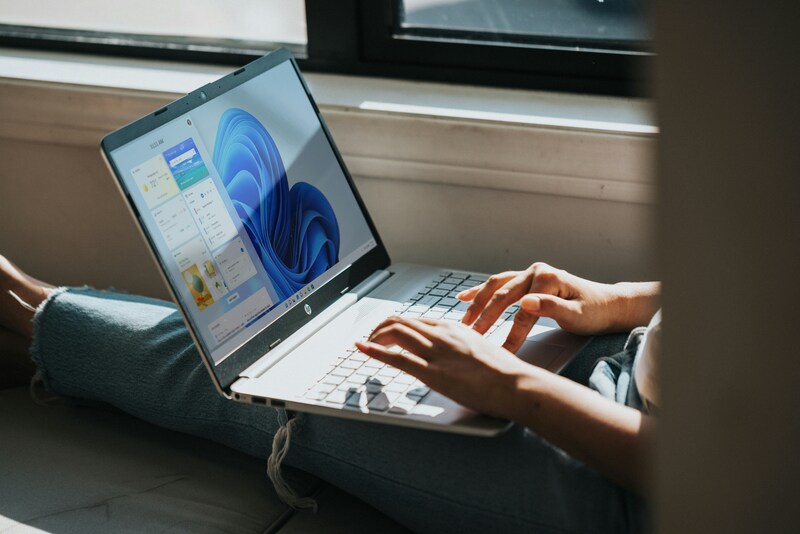
3. How to Connect Hotspot to Laptop on Windows
Once your phone’s hotspot is turned on, Windows connects to it much like any other Wi-Fi network.
- Click the Wi-Fi or network icon on the right side of the taskbar
- Open the list of available Wi-Fi networks
- Select your phone’s hotspot name
- Click Connect
- Enter the hotspot password shown on your phone
- Wait for Windows to show that the network is connected
If you plan to use the same hotspot again, you can select Connect automatically so your laptop reconnects when the hotspot is available.
If the hotspot name does not appear, make sure it is still turned on, refresh the Wi-Fi list, and move the phone closer to the laptop.
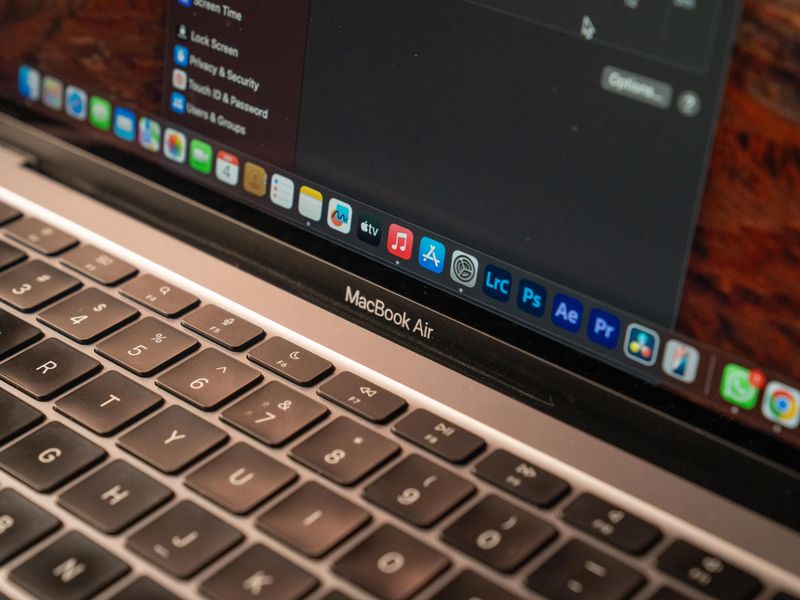
4. How to Connect Hotspot to a Mac
If you are learning how to connect hotspot to laptop on a Mac, the process is straightforward. Once the hotspot is active on your phone, your Mac can connect through the same Wi-Fi menu used for other wireless networks.
- Click the Wi-Fi icon in the menu bar or open Control Center > Wi-Fi
- Look for your phone under the available networks
- Select the hotspot name
- Enter the hotspot password if prompted
- Wait until the Wi-Fi icon shows that the Mac is connected
If you use an iPhone and Mac signed in to the same Apple Account with Wi-Fi and Bluetooth enabled, the iPhone may also appear automatically as an Instant Hotspot, allowing you to connect without manually entering the hotspot password.
If the phone does not appear, confirm that the hotspot is turned on and move it closer to the Mac.
5. Alternative Ways to Connect a Laptop to Phone Internet
If you are exploring how to connect hotspot to laptop beyond Wi-Fi, USB and Bluetooth are two useful alternatives. Both can share your phone’s internet connection with a laptop, but each has different advantages and limitations. The sections below explain when to use each option.
USB Tethering
A USB cable gives the laptop a wired link to the phone’s data instead of Wi-Fi. This keeps the connection steadier. It also puts less strain on the phone’s battery than Wi-Fi does.
- Plug the phone into the laptop with a USB cable
- On Android, pull down the notification shade and tap USB Tethering, or turn it on under Settings
- On iPhone with a Windows laptop, the laptop may need Apple’s USB driver first, usually installed through iTunes
- On iPhone with a Mac, the connection works right away with no extra driver needed
- USB holds a steadier connection and drains the phone’s battery more slowly than Wi-Fi does
Bluetooth Tethering
Bluetooth works when neither Wi-Fi nor a cable is available. It is the slowest of the three how to connect hotspot from iPhone to laptop methods by far. Pairing takes a bit more setup than the other options.
- Pair the phone and laptop under Bluetooth settings on both devices
- Select the phone as the network device once the pairing finishes
- Treat this as a last resort, since Wi-Fi and USB both move data much faster
6. Why Can’t I Connect a Hotspot to My Laptop?
If you already know how to connect hotspot to laptop but the connection still fails, the problem is usually related to hotspot settings, an incorrect password, weak cellular service, or a temporary Wi-Fi issue.
Try these fixes in order:
- Check that the hotspot is on: On iPhone, make sure Allow Others to Join is enabled. On Android, confirm Mobile Hotspot is active.
- Check mobile data: Your phone needs an active cellular data connection for the hotspot to provide internet access.
- Re-enter the password: Hotspot passwords are case-sensitive, so remove the saved network on your laptop and type the password again.
- Turn Wi-Fi off and back on: Do this on the laptop, then search for the hotspot again.
- Move the devices closer together: Distance and interference can prevent a stable connection.
- Restart both devices: A restart can clear temporary network errors.
- Check your mobile plan: Some plans limit hotspot access or include a separate hotspot allowance.
If the laptop connects to the hotspot but shows “No Internet,” the issue is more likely related to the phone’s cellular connection or mobile plan than the laptop itself.
>>> Check more: Why Is My Hotspot Not Working? 5+ Common Causes and Quick Fixes
7. FAQs
How to connect hotspot from iPhone to Laptop?
Turn on the hotspot in your phone’s settings, then select its name from your laptop’s Wi-Fi list and enter the password. The steps are nearly identical on Windows and Mac.
How do I activate the hotspot on my laptop?
The hotspot itself lives on the phone, not the laptop, so there is nothing to activate on the laptop side. If you mean using a Windows laptop as its own hotspot for another device, that is a different feature. Find it under Windows Settings, then Network & Internet, then Mobile Hotspot.
How do I connect a laptop to a Wi-Fi hotspot?
Click the Wi-Fi icon on the laptop, choose the hotspot’s name from the list, and type the password. This works the same way whether the hotspot comes from a phone or a dedicated hotspot device.
Does using a hotspot on a laptop use more data?
A laptop typically uses more data than a phone alone. Browsers, updates, and background apps all pull more data on a bigger screen. The connection type, Wi-Fi, USB, or Bluetooth, does not change how much data gets used. It only changes how the data travels.
Final Thoughts
Once you understand how to connect hotspot to laptop, getting online from almost anywhere becomes much easier. Windows and Mac both connect to a phone hotspot much like a normal Wi-Fi network, while USB and Bluetooth can help when wireless connections are unstable.
If the hotspot does not appear or shows no internet, check the phone’s mobile data, hotspot settings, password, and plan limits. A few quick checks are usually enough to restore the connection.