
Sharing your iPhone’s internet with a laptop takes about five taps once you know where the setting lives. How to turn on hotspot on iPhone? The Personal Hotspot menu sometimes sits inside the Cellular menu, not the main settings list.
This guide covers turning it on, connecting a device, switching it off, and what to check when the option will not work.
1. How to Turn On Hotspot on iPhone
Personal Hotspot shares your iPhone’s cellular data with a laptop, tablet, or another phone. The whole setup takes under a minute once you find the menu. Follow the five steps below in order.
- Step 1. Open the Settings App
Tap the grey gear icon on your home screen. This is where every hotspot setting lives.
- Step 2. Tap Personal Hotspot
Look for Personal Hotspot near the top of the settings list. If you do not see it there, tap Cellular or Mobile Service first, then find Personal Hotspot inside that menu.
- Step 3. Turn On Allow Others to Join
When learning how to turn on hotspot on iPhone, the key step is enabling Allow Others to Join. Tap the toggle so it turns green. Your iPhone will then appear as an available Wi-Fi network that nearby devices can find and connect to
- Step 4. Check That Cellular Data Is On
Your hotspot shares your cellular connection, so it cannot work without one. Go back to Settings, tap Cellular, and confirm Cellular Data is switched on.
- Step 5. Note or Change the Wi-Fi Password
Tap Wi-Fi Password on the Personal Hotspot screen to see the current password. You can type a new one here if the default is hard to type.
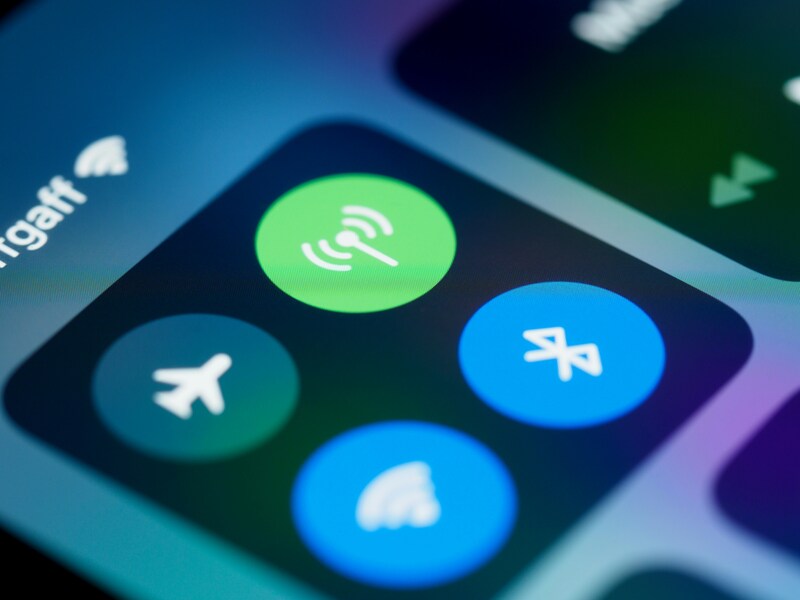
2. How to Connect Another Device to Your Hotspot
After learning how to turn on hotspot on iPhone, the next step is connecting your laptop, tablet, or another phone to the network.
- Step 1. Open Wi-Fi settings on the other device
On a Mac, click the Wi-Fi icon in the top menu bar. On Windows, click the network icon in the bottom right corner. On an iPad or Android tablet, open Settings and tap Wi-Fi.
- Step 2. Find your iPhone’s name in the network list.
The name matches whatever your iPhone is called, such as “John’s iPhone.” A small hotspot icon usually appears beside it, which is how you tell it apart from a regular router.
- Step 3. Select the network and type the password.
Use the password shown on your iPhone’s Personal Hotspot screen. Passwords are case-sensitive, so type it by hand rather than pasting it.
Your iPhone shows a blue bar or a badge at the top of the screen once a device connects. Tapping that bar takes you straight back to the hotspot screen, where you can see how many devices are using it.
3. Why Can’t I Turn On Personal Hotspot on My iPhone?
Knowing how to turn on hotspot on iPhone does not help if Personal Hotspot is unavailable, greyed out, or refuses to activate. In that case, check your cellular and carrier settings first.
Try these checks:
- Turn on Cellular Data: Go to Settings > Cellular and make sure mobile data is enabled.
- Check your plan: Some plans do not include hotspot or tethering, or may limit access after a data allowance is used.
- Restart your iPhone: A restart can clear temporary network or settings glitches.
- Check for carrier settings updates: Go to Settings > General > About and install an update if one appears.
- Update iOS: An outdated software version can sometimes cause connectivity issues.
If Personal Hotspot is still unavailable after these steps, contact your carrier to confirm hotspot access is enabled on your line.
>>> Read more: Why Is My Hotspot Not Working? 10 Common Causes and Quick Fixes
4. How to Turn Off Personal Hotspot on iPhone
If you have already learned how to turn on hotspot on iPhone, the next step is knowing how to turn Personal Hotspot off to prevent unwanted reconnections.
- Open Settings on your iPhone.
- Tap Personal Hotspot.
- Turn off Allow Others to Join.
If you do not see Personal Hotspot directly in Settings, go to Settings > Cellular > Personal Hotspot on some iPhone configurations.
Keep in mind that simply disconnecting Wi-Fi on another device does not necessarily disable the hotspot itself. Turning off Allow Others to Join is the clearest way to stop new devices from connecting.
5. Tips for a Better Hotspot Connection
A mobile hotspot usually depends on your iPhone’s cellular signal, so performance can vary more than home Wi-Fi. Distance, network congestion, device compatibility, and background data use can all affect speed and stability.
Try these tips for a better connection if you’re wondering how to turn on hotspot iPhone:
- Keep devices close together: Shorter distance can improve signal strength and reduce dropouts.
- Turn on Maximize Compatibility: This can help older devices detect and connect to your hotspot more reliably.
- Check your cellular signal: Move to an area with stronger mobile coverage if speeds are slow.
- Limit connected devices: Too many devices sharing one hotspot can reduce performance.
- Pause large downloads or updates: Heavy data use can slow the connection for everyone.
- Restart both devices: This can clear temporary connection problems.
If speeds remain consistently poor, check whether your plan limits high-speed hotspot data.
>>> Read more: How to Change Hotspot Name on iPhone (Step-by-Step)
6. FAQs
How can I activate hotspot on iPhone?
Open Settings, tap Personal Hotspot, then turn on Allow Others to Join. If you cannot see Personal Hotspot in the list, look inside the Cellular menu first.
Why is my hotspot not showing up?
Turn on Maximize Compatibility in the Personal Hotspot menu. This lets older devices find the network. Also check that both Wi-Fi and Bluetooth are switched on.
How do I enable hotspot in settings?
Go to Settings, then Personal Hotspot, and switch on Allow Others to Join. Make sure Cellular Data is on too, or the hotspot will turn on but share nothing.
Final Thoughts
Five taps is all it takes once you know the Personal Hotspot menu may sit inside Cellular. If the toggle will not switch on, the cause is almost always Cellular Data being off.
A plan without hotspot data is the other likely reason. Now that you know how to turn on hotspot on iPhone, check the troubleshooting guide above for anything left unsolved.