
Knowing how to turn on hotspot lets you share your phone’s cellular data with laptops, tablets, and other devices when regular Wi-Fi is unavailable. On most phones, you simply open the hotspot settings, enable the feature, and connect another device using the network name and password.
Below, you’ll find step-by-step instructions for iPhone and Android, along with useful settings and quick fixes for common hotspot connection problems.
1. How to Turn On Hotspot on iPhone
To turn on hotspot on iPhone, use Apple’s built-in Personal Hotspot feature. It shares your iPhone’s cellular data connection with laptops, tablets, and other compatible devices.
Turn On Personal Hotspot Through Settings
Go to:
Settings > Personal Hotspot
Turn on Allow Others to Join. You can also view or change your hotspot Wi-Fi password from this screen.
On some iPhones or carrier configurations, you may need to go to:
Settings > Cellular > Personal Hotspot
Personal Hotspot requires a cellular plan that supports tethering. If the option is missing even though Cellular Data is working, check your mobile plan or contact your carrier.
Turn On Hotspot From Control Center
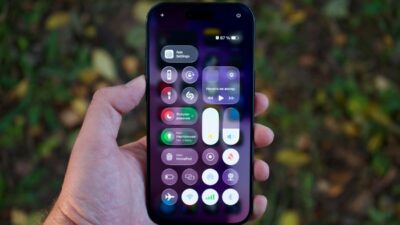
For quicker access, open Control Center, press and hold the connectivity controls, and tap Personal Hotspot to make it discoverable.
Once the hotspot is active, open Wi-Fi settings on the device you want to connect, select your iPhone, and enter the hotspot password.
2. How to Turn On Hotspot on Android
To turn on hotspot on Android, open your phone’s hotspot settings and enable Wi-Fi sharing. The exact menu varies by manufacturer and Android version.
Turn on Hotspot Through Settings
On a Google Pixel, go to:
Settings > Network & internet > Hotspot & tethering > Wi-Fi hotspot
Turn on Wi-Fi hotspot. You can also view or change the hotspot name and password from this screen.
On Samsung Galaxy phones, the typical path is:
Settings > Connections > Mobile Hotspot and Tethering > Mobile Hotspot
Then turn on Mobile Hotspot.
Other Android phones may use similar labels such as Hotspot & tethering, Mobile Hotspot, or Wi-Fi hotspot.
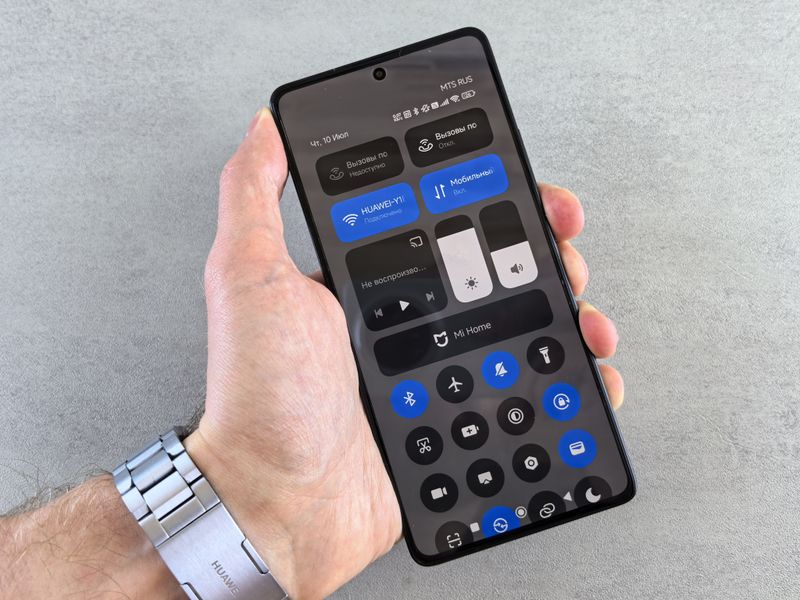
Turn on Hotspot From Quick Settings
For faster access, swipe down from the top of the screen to open Quick Settings and tap Hotspot.
If the Hotspot button is missing, edit the Quick Settings panel and add it. Once enabled, other devices can find your hotspot through their Wi-Fi settings and connect using its password.
>>> Read more: What Is a Personal Hotspot and How Does It Work?
3. How to Connect a Laptop or Other Device to Your Hotspot
Once you understand how to turn on hotspot, connecting another device works much like joining an ordinary Wi-Fi network.
First, leave the hotspot enabled on your phone. Then, on your laptop, tablet, or other device:
- Open the Wi-Fi settings.
- Find your phone’s hotspot name.
- Select the network.
- Enter the hotspot password.
- Choose Connect.
Google documents the same sequence for Android hotspots: open the Wi-Fi list on the second device, choose the phone’s hotspot name, enter its password, and connect.
For an iPhone Personal Hotspot, Apple recommends keeping the devices nearby and enabling Wi-Fi and Bluetooth. Apple states that devices should generally remain within about 30 feet, or 10 meters, when using its hotspot features.
4. How to Change Your Hotspot Name and Password
You can change your hotspot name and password through your phone’s settings. The steps differ slightly between iPhone and Android.
On iPhone
To change the hotspot password, go to:
Settings > Personal Hotspot > Wi-Fi Password
Enter a new password and tap Done.
Your iPhone hotspot normally uses your device name as its network name. To change it, go to:
Settings > General > About > Name
Enter a new device name. This will also change the name displayed for your Personal Hotspot.
On Android
The exact path varies by manufacturer, but you can typically go to:
Settings > Network & internet > Hotspot & tethering > Wi-Fi hotspot
From there, edit the hotspot name and password. Samsung phones usually provide these options under Mobile Hotspot settings.
Use a strong, unique password to prevent unauthorized devices from connecting. After changing the hotspot name or password, previously connected devices may need to reconnect using the new information.
5. What to Check If Your Hotspot Will Not Turn On
If you know how to turn on hotspot but the feature is unavailable or not working, check these common causes first:
- Test mobile data: Turn off Wi-Fi and open a webpage. If cellular data does not work, troubleshoot that connection first.
- Check your mobile plan: Some carriers or plans may not support hotspot or tethering.
- Restart your phone: A restart can clear temporary network or software issues.
- Install updates: Update iOS or Android if a newer version is available.
- Check VPN settings: Temporarily disable a VPN to see whether it is interfering with hotspot sharing.
- Check compatibility: If the hotspot turns on but another device cannot find it, try a different Wi-Fi band or compatibility setting.
If the hotspot option is completely missing despite working cellular data, contact your carrier to confirm that tethering is supported and enabled on your plan.
6. How to Use a Hotspot Without Draining Your Battery
Using a hotspot can drain your phone’s battery faster because it maintains a cellular connection while sharing internet access with other devices.
After learning how to turn on hotspot, use these tips to reduce battery drain:
- Turn off the hotspot when finished: Do not leave it running when no devices are connected.
- Keep your phone charged: Plug it into a charger during longer hotspot sessions when possible.
- Limit connected devices: Disconnect devices you are not actively using.
- Reduce background activity: Pause cloud backups, software updates, large downloads, and unnecessary syncing.
- Use automatic shutoff: Some Android phones can turn off the hotspot when no devices are connected.
- Avoid excessive heat: Keep your phone uncovered and away from direct sunlight while tethering.
These steps can reduce unnecessary battery use while keeping your hotspot connection available when you need it.
>>> Read more: How to Get Hotspot on iPhone: 5 Easy Setup and Connection Methods
7. FAQs
Can I turn on hotspot without mobile data?
You may be able to enable the hotspot feature, but internet access requires a connection to share. On iPhone, Personal Hotspot normally shares cellular data. Some Android phones may also support sharing an existing Wi-Fi connection.
Why is Personal Hotspot not showing on my iPhone?
Personal Hotspot may be missing if Cellular Data is disabled or your mobile plan does not support tethering. Check Settings > Cellular first. If cellular data works but Personal Hotspot is still unavailable, contact your carrier.
Can I use hotspot while my phone is connected to Wi-Fi?
It depends on the device. iPhone Personal Hotspot normally shares the phone’s cellular connection rather than rebroadcasting Wi-Fi. Some Android phones support Wi-Fi sharing, allowing them to share an existing Wi-Fi connection. Check your specific phone model for compatibility.
8. Final Thoughts
Learning how to turn on hotspot takes only a few steps on both iPhone and Android. Enable Personal Hotspot or Mobile Hotspot, check the network name and password, and connect your other device through Wi-Fi.
Remember that hotspot availability, data limits, and speeds can depend on your phone and mobile plan. When you finish using the connection, turn the hotspot off to reduce unnecessary battery and data use.