
A laptop or tablet needs internet, and your Android phone already has a working mobile connection. The next step is figuring out how to use hotspot on Android with the settings and connection method available on your device.
Android menus vary between Samsung, Google Pixel, Motorola, and other brands, so one path does not fit every phone. This guide covers the common setup process, alternative tethering methods, brand-specific menu names, and quick checks for connection problems.
1. What Do You Need to Use a Hotspot on Android?
Before learning how to use hotspot on Android, make sure your phone can share a working cellular connection. Check these basic requirements:
- Working mobile data: Turn off Wi-Fi and confirm that your phone can access the internet through cellular data.
- Hotspot support: Your carrier and mobile plan must allow tethering or hotspot use.
- Available hotspot data: Some plans provide a separate high-speed data allowance for hotspot use.
- Stable cellular signal: A weak mobile connection can result in slow or unreliable hotspot performance.
- A secure password: Protect your Wi-Fi hotspot with a password to prevent unauthorized devices from connecting.
Once these requirements are in place, Wi-Fi is usually the quickest way to connect another device.
2. How to Use Hotspot on Android Through Wi-Fi
The menu path differs slightly among Android brands, but the setup process stays similar. Follow these steps for how to use mobile hotspot on Android through Wi-Fi.
- Step 1: Turn on mobile data
Open the phone’s mobile-network settings and confirm that cellular data is active. Test the connection directly on the phone before sharing it.
- Step 2: Open the hotspot settings
Go to Settings and look for Network & Internet, Connections, or a similar menu. Select Hotspot & Tethering, Mobile Hotspot, or Portable Hotspot.
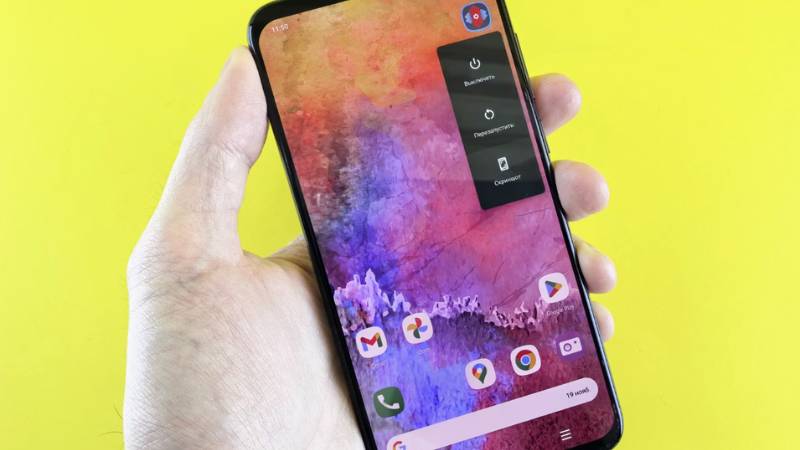
You can also swipe down from the top of the screen and tap the Hotspot tile. If it is missing, edit Quick Settings and add it.
- Step 3: Configure the hotspot
Open the hotspot configuration page and review the network name, password, security type, and Wi-Fi band. Keep password protection turned on so unknown devices cannot use your data.
Use 5 GHz for better performance when the receiving device is nearby and supports it. Choose 2.4 GHz when compatibility or longer range matters more.
- Step 4: Turn on the hotspot
Enable Wi-Fi Hotspot or Mobile Hotspot. A notification or status icon should appear while the phone is sharing its connection.
- Step 5: Connect the other device
On the laptop, tablet, or second phone, open the available Wi-Fi networks. Select the Android phone’s hotspot name and enter the password shown in its settings.
- Step 6: Confirm internet access
Open a webpage on the connected device. If you were wondering how to use my hotspot on my Android, this final test confirms that both the local Wi-Fi link and the phone’s cellular connection are working.
Android phones may support several connected devices at once, but every device shares the same available bandwidth and data allowance.
>>> Read more: Why Is My Hotspot Not Working? 10 Common Causes and Quick Fixes
3. Other Ways to Share an Android Phone’s Internet Connection
Wi-Fi works for most situations, but it is not the only approach to how to use a hotspot on Android. USB can provide a direct connection to one computer, while Bluetooth and Instant Tethering can help in more specific situations.
USB Tethering
Connect the Android phone to a compatible computer with a USB cable. Then open Hotspot & Tethering or the equivalent menu and turn on USB Tethering.
This how to use hotspot on Android option may remain unavailable until the cable is connected and the phone is unlocked. If prompted, approve the USB connection on the phone.
Standard Android USB tethering is mainly intended for compatible Windows, Linux, and ChromeOS computers; Google notes that Mac computers cannot use Android’s standard USB tethering method.
USB tethering is useful when Wi-Fi is unstable, the computer remains beside the phone, or you want the phone to charge while sharing data.
Bluetooth Tethering
Pair the Android phone with the receiving device through Bluetooth first. After pairing, open the phone’s hotspot and tethering settings and enable Bluetooth Tethering.
Next, open the Bluetooth network options on the other device and select the Android phone as its internet connection. Bluetooth usually offers lower speeds than Wi-Fi or USB, so it is better suited to email, messaging, and light browsing.
Compatibility depends on the receiving device and operating system. If the necessary Bluetooth network option does not appear, use Wi-Fi or USB instead.
Instant Tethering Between Supported Android Devices
Instant Tethering can connect supported Android devices without requiring you to enter a hotspot password each time. Both devices should be nearby, signed in to the same Google Account, and have Bluetooth and Cross-device services turned on.
On supported devices, open Settings > Google > Devices & Sharing > Cross-device services, then enable internet sharing and Instant Hotspot. The device needing internet may display a notification offering to connect through the phone.
Google states that Cross-device services are available on Android 11 and later, with more functionality on Android 14 and newer devices. Android Go is not supported, and Samsung devices may use Auto Hotspot instead.
4. How Android Hotspot Settings Differ by Phone Brand
Android manufacturers often rename or move the same hotspot controls. This variation matters when following instructions for how to use hotspot on Android, since the path shown on one phone may not match another.
An Android fragmentation study examined more than 20,000 apps and identified device-specific behavior linked to differences in system versions, hardware, and manufacturer customizations.
| Android Brand | Typical Settings Path | Hotspot Feature Name |
| Google Pixel | Settings > Network & internet > Hotspot & tethering | Wi-Fi hotspot |
| Samsung Galaxy | Settings > Connections > Mobile Hotspot and Tethering | Mobile Hotspot |
| Motorola | Settings > Network & internet > Hotspot & tethering | Wi-Fi hotspot |
| OnePlus | Settings > Connection & sharing | Personal hotspot |
| Xiaomi or Redmi | Settings > Portable hotspot or Connection & sharing | Portable hotspot |
These paths are typical rather than universal. Menu names can change with the phone model, Android version, region, or manufacturer interface. Use the Settings search bar and enter “hotspot” or “tethering” if the expected menu is missing.
5. Why Is Your Android Hotspot Not Working?
Start by testing mobile data directly on the phone. If the phone itself has no internet, the hotspot has nothing to share.
When mobile data works, check the following:
- The hotspot is not visible: Turn off Hidden Network or switch from 5 GHz to 2.4 GHz.
- The password is rejected: Recheck the password or create a new one.
- The device connects without internet: Confirm hotspot access and remaining data with the carrier.
- The connection keeps dropping: Disable automatic hotspot shutoff and Battery Saver temporarily.
- Only one device fails: Forget the hotspot network on that device and reconnect.
- The problem began recently: Restart both devices and install available updates.
>>> Read more: How to Change Hotspot Name on iPhone (Step-by-Step)
6. Tips for Using an Android Hotspot
Once you know how to use hotspot on Android, a few habits can improve security, battery life, and data control:
- Use a strong password and WPA2 or WPA3 security when available.
- Disconnect devices that are no longer in use.
- Check the connected-device list for unfamiliar users.
- Pause cloud backups, updates, and large downloads.
- Keep the phone plugged in during longer sessions.
- Place the phone where it has a strong cellular signal.
- Use 5 GHz nearby and 2.4 GHz when greater range is needed.
- Review hotspot usage in the phone or carrier app.
- Turn off tethering when the session ends.
7. FAQs
Is there a downside to using your phone as a hotspot?
Hotspot use can drain the battery, warm the phone, and consume mobile data quickly. Speed also falls when several devices share the connection.
Is hotspot free if you have unlimited data?
Not always. After learning how to use hotspot on Android, check whether your plan includes tethering, a separate high-speed allowance, or reduced speeds after a limit.
How do I connect to a hotspot?
Open Wi-Fi settings on the receiving device, select the hotspot name, and enter its password. Keep both devices nearby during the first connection.
How do I use my phone as a hotspot for my laptop?
Turn on Wi-Fi hotspot settings, then select the phone’s network from the laptop’s Wi-Fi list. USB tethering is another option for a compatible computer.
8. Conclusion
Android phones can share mobile data through Wi-Fi, USB, Bluetooth, and supported cross-device features. The menu names vary, but the basic setup remains similar.
For how to use hotspot on Android, confirm mobile data first, activate the preferred tethering method, secure the connection, and monitor battery and data use throughout the session.